how to find and use assets/art from itch.io
As you're making your game, you'll quickly find yourself needing more sprites to use in your game. If you were to just look up "grass images" when you need grass or "tree images" when you need trees, your game will end up looking very messy. The best place to find art and assets for your game is itch.io/game-assets.
Here, you can filter by different tags and search for the assets you need, whether it's a top down dungeon tileset or enemy sprites for your game. Once you find the assets you need, download them and head over to GameMaker!
A note about pixel art:
Pixel art generally comes in 2 varieties: 16x16 and 32x32 (can also be called 16-bit and 32-bit. These refer to the resolution of the sprites. In a 16-bit tileset, each sprite exists on a grid where each cell is 16 pixels tall and 16 pixels wide, and 32-bit is the same thing but sprite is twice as tall and twice as wide. Think back to your tutorial game, that was made on a 16x16 grid.
It's important that you don't mix 16x16 and 32x32 sprites, since that will cause your game to look messy and not clean
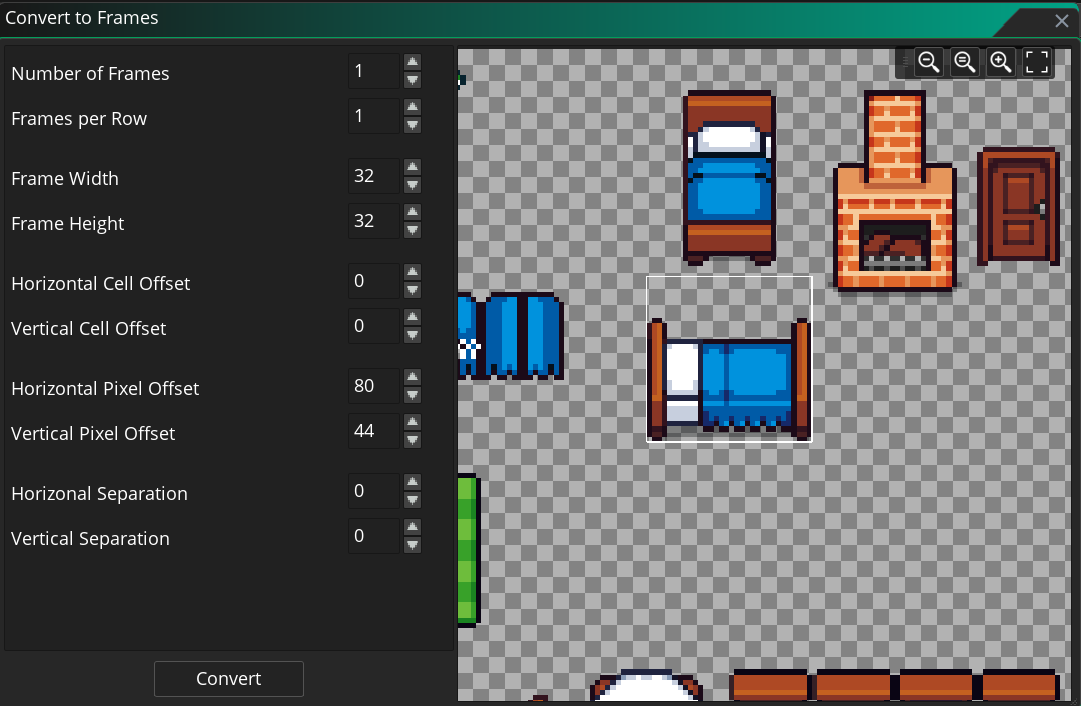
If the assets you download only contain one sprite in each image file, then you can just import the images the same way you did in the tutorial. However, a lot of these asset packs may contain all of the sprites put side-by-side in one image file. If this is the case, once your in your GameMaker editor, go to your sprite editor and click on Image > Import Stip Image at the top. Now, you can select your select the image to import it. Then, you'll have to change the size of the white box and move it to encompass the object you would like to import.